

You spent ₹40,000 on an RTX 5060 Ti and you’re still dropping frames. Here’s why — and what to do about it.
You just upgraded your GPU. You were expecting silky smooth 144fps. Instead, you’re sitting at 70–80fps, stuttering in the same spots, watching the same frame drops you had before. Frustrating, right?
Before you blame the game, the drivers, or your internet connection — your problem might actually be a GPU bottleneck caused by your CPU. Or the other way around. Most people confuse the two, and that confusion costs them money.
Let’s break this down completely — what it is, how to detect it, and exactly how to fix it.
First, What Even Is a Bottleneck?
Think of your PC as a factory assembly line. Your CPU handles the instructions — it tells the GPU what to render, manages game logic, AI, physics, and so on. Your GPU takes those instructions and actually draws the frames on screen.
A bottleneck happens when one component is working at 100% capacity while the other is sitting idle, waiting. The slower component becomes the “bottleneck” — it chokes the entire system.
There are two types:
- CPU Bottleneck — Your CPU can’t feed frames fast enough for your GPU to render. The GPU sits underutilised.
- GPU Bottleneck — Your GPU can’t render frames fast enough for what your CPU is feeding it. The CPU sits underutilised.
Here’s the important part that most people miss:
A GPU bottleneck is actually normal and desirable in most gaming scenarios. A CPU bottleneck is the one you need to worry about.
When your GPU is running at 95–100% and your CPU is at 60–70%, your hardware is doing exactly what it should. You’re getting the most out of your GPU. That’s a healthy system.
The problem starts when your CPU is at 90–100% and your GPU is at 40–60% — your expensive graphics card is basically waiting around doing nothing.
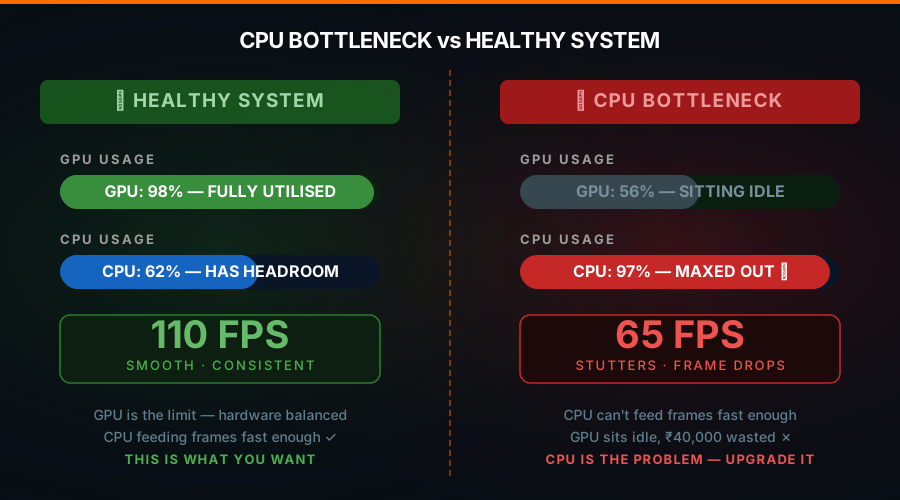
Real World Example: The ₹40,000 GPU Trap
Let’s say you’ve got an RTX 5060 Ti paired with an Intel Core i5-10400 (a 6-core CPU from 2020).
In a game like Cyberpunk 2077 at 1080p High settings, the CPU is handling hundreds of NPCs, traffic systems, physics, and AI simultaneously. The i5-10400 starts sweating at around 85–95% usage. Your RTX 5060 Ti? It’s sitting at 55% because it can only render as fast as the CPU feeds it.
Result: you’re getting maybe 65fps in a scene where a proper pairing would give you 110fps. You spent ₹40,000 and left half its performance on the table.
How to Check If You Have a Bottleneck (Step by Step)
Don’t guess. Here’s how to actually measure it:
Method 1 — MSI Afterburner (Most Reliable)
- Download MSI Afterburner (it’s free)
- Open the settings and enable GPU Usage % and CPU Usage % overlays
- Launch your game and play for 10–15 minutes in a demanding area
- Watch the overlay numbers
What you’re looking for:
| Scenario | GPU % | CPU % | Verdict |
|---|---|---|---|
| Healthy (GPU limited) | 95–100% | 50–70% | Normal |
| CPU Bottleneck | 40–60% | 90–100% | Problem |
| Thermal Throttling | Fluctuating | Fluctuating | Different issue |
Method 2 — Windows Task Manager
- Press Ctrl + Shift + Esc
- Go to the Performance tab
- Watch CPU and GPU graphs while gaming
Same logic applies — GPU should be the busy one, not the CPU.
Method 3 — Check Your 1% Lows
If your average FPS looks okay but your 1% lows are terrible (causing stutters), that’s almost always a CPU bottleneck. The CPU can’t consistently keep up, causing irregular frame delivery even when average numbers look fine.
Why Does This Happen? The Main Causes
1. Mismatched Hardware
The most common cause. Pairing a high-end GPU with an old or weak CPU. Classic combos that cause problems:
- RTX 5070 + Core i5-8400
- RTX 5060 Ti + Ryzen 3 3100
- RTX 4080 + any dual-core or older quad-core CPU
The rule of thumb: your CPU generation matters more than most people think.
2. Resolution Makes a Huge Difference
At 1080p, games are more CPU-dependent. The GPU finishes frames so fast that it keeps asking the CPU for more — and an old CPU can’t keep up.
At 1440p or 4K, the GPU has much more pixel work to do, so it naturally becomes the bottleneck. This is why upgrading to a higher resolution monitor sometimes “fixes” a CPU bottleneck — you’ve just moved the workload.
This is also why you’ll see reviewers always mention the resolution when talking about CPU performance in games.
3. The Game Type Matters
Not all games stress hardware equally:
- Open-world games (GTA, Cyberpunk, RDR2) — very CPU heavy, lots of NPCs and systems
- Competitive shooters (CS2, Valorant, Warzone) — extremely CPU dependent, especially at high framerates
- GPU-heavy titles (Control, Alan Wake 2, Crysis) — GPU does most of the work
If you’re bottlenecking in CS2 at 144fps but not in Cyberpunk at 60fps, that’s completely normal behaviour — not a system fault.
4. Background Processes
Sometimes it’s not even your game. Chrome with 30 tabs, Discord, OBS streaming, and an antivirus scan all running simultaneously will choke your CPU. Close unnecessary apps before gaming — it genuinely helps.

How to Fix a CPU Bottleneck
Here’s your fix priority list:
Fix 1 — Increase Your Resolution or Enable Ray Tracing (Free, Instant)
Counterintuitive but effective. Pushing the GPU harder means it takes longer to render each frame, giving the CPU more time to prepare the next one. Switch from 1080p to 1440p, or crank up graphical settings. This shifts the bottleneck from CPU to GPU — exactly where you want it.
Fix 2 — Close Background Apps (Free, 5 Minutes)
Kill Chrome, Discord overlays, Windows updates, anything non-essential. In CPU-heavy games this alone can recover 10–15% performance for free.
Fix 3 — Enable XMP/EXPO in BIOS (Free, 15 Minutes)
Most people have their RAM running at its base speed (2133MHz or 2400MHz) instead of its rated speed (3200MHz, 6000MHz etc.). CPU performance is directly tied to RAM speed.
- Restart your PC
- Enter BIOS (usually Delete or F2 at startup)
- Find XMP (Intel) or EXPO (AMD) and enable it
- Save and restart
This is one of the most underrated free performance upgrades. Don’t skip it.
Fix 4 — Upgrade Your CPU
If you’ve done all the above and you’re still bottlenecked, it’s time for a hardware upgrade.
Good upgrade paths in 2025 (Indian market):
| Budget | Recommendation |
|---|---|
| Under ₹15,000 | Ryzen 5 5600 (AM4, huge value) |
| ₹15,000–₹25,000 | Ryzen 5 7600 or Core i5-13400F |
| ₹25,000–₹40,000 | Ryzen 7 7700X or Core i5-14600K |
| ₹40,000+ | Ryzen 9 7900X or Core i7-14700K |
Important: Check if your motherboard supports the new CPU before buying. Switching from Intel to AMD or changing generations often requires a new motherboard too.
Fix 5 — Upgrade Your RAM (Speed + Capacity)
If you’re on DDR4 with 8GB, upgrade to 16GB at 3200MHz or higher. Modern games in 2025 regularly use 12–14GB of system RAM. Running out of RAM causes severe performance issues that look exactly like a CPU bottleneck.
GPU Bottleneck — Is That Actually a Problem?
Let’s quickly address this since there’s so much confusion.
If your GPU is at 99% and CPU is at 60%, you are not in trouble. This is literally what you want. Your expensive GPU is being fully utilised and your CPU has headroom to spare.
The only time a GPU bottleneck is a “problem” is if you’re not hitting your target framerate and upgrading the GPU is the only way to get there. In that case it’s not really a “bottleneck problem” — you just need a better GPU.
Quick Cheat Sheet
| Symptom | Likely Cause | Fix |
|---|---|---|
| GPU below 70%, low FPS | CPU Bottleneck | Upgrade CPU, enable XMP, close apps |
| GPU at 99%, low FPS | GPU is the limit | Upgrade GPU or lower settings |
| Good average FPS, bad stutters | CPU Bottleneck | Same as above |
| FPS drops only in open world | CPU struggling with simulation | CPU upgrade or lower crowd/NPC settings |
| All good at 1440p, bad at 1080p | Normal CPU scaling | Play at higher resolution |
The Bottom Line
A GPU bottleneck is a feature. A CPU bottleneck is the enemy.
If your shiny new GPU isn’t performing like you expected, check your CPU usage before blaming drivers or the game. A ₹5,000 RAM upgrade or a CPU bump can sometimes unlock more performance than buying an even pricier GPU.
Balance your build, monitor your usage, and stop leaving performance on the table.
Have questions about your specific CPU and GPU combo? Drop it in the comments and I’ll tell you exactly what your bottleneck situation looks like.
Related Posts:
- RTX 5070 vs 5060 Ti 16GB: Which GPU Should You Buy in 2026?
- VRAM 12GB vs. 16GB: Is It Worth Your Money in 2026?
- Best Budget Gaming Laptop in India 2026

Leave a Reply